
Docs Network
ParentHierarchy
Hover a parent in the pane-bar path with Alt to see its parent shortcut, global shortcut and internal operators, and Ctrl to see its custom parameters and values. Click any item to copy a reference to it. It works on the path you already have and adds no button of its own.
⇄ Network  Pane bar button
Where it appears
Read off the registry hosts in the component, so this is where the tool puts itself in a default install; every one of these can be reordered or hidden from Hub.
- Pane bar buttonleft side · position 8
Parent Hierarchy
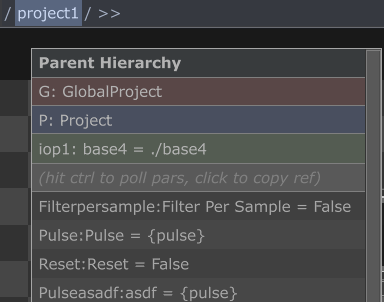
Hovering over individual elements in the navigation path bar and holding Alt
will show the Parent Shortcut (P), Global Shortcut (G) and Internal
Operators (iop) for that COMP only.
Furthermore holding Ctrl will show the relative path of the iop target as well
as all custom parameters and their values. You can hit Ctrl again to poll the
values.
- Clicking on any of the items will copy a reference to that object
- You can then paste this to any expression or script
- Right-Clicking on any of the parameters will open the parameter customization window of that param
This tool works from the path already shown in the pane bar, so the bar keeps its existing buttons and stays exactly as long as it was.
With iopBrowser installed, the same hover also lists the internal operators in its browser. Without it the hover works exactly as described above, it simply does not reach the browser.
The Navbar tab of Hub (the FNS button in the main-menu bar) manages what else lives on the pane bar: reorder items, flip an item between the left/right side, show/hide it, and drop any panel COMP on the FNS button to register it as its own self-installing navbar package.
Extensions
Each COMP in the hover list also shows its extensions, as E1:, E2: and so on.
The label is the Extension Name parameter when one is set, because that is
what .ext.<Name> resolves by, and it is often different from the class. With no
name set you get the class name, which is the only thing left to call it by.
Hover an extension row and it expands, listing the API TouchDesigner promotes to the COMP: methods with their signature, properties, and attributes with their type. Move off the row and it folds away again.
Capitalized class constants are left out. TouchDesigner promotes those too, but they are a tool's own bookkeeping, and listing them buries the methods you came for. The same goes for the accessors CustomParHelper generates for each parameter: on a tool with forty parameters, those rows would be all you see.
Clicking copies a reference you can paste straight into an expression or a
script: an extension row gives ext.TimelineToolsExt, and a member gives
ext.TimelineToolsExt.AcceptsDrop(items) with the signature intact.
The ext. form works whether or not the COMP sets an Extension Name, because
TouchDesigner registers an extension under that name when there is one and under
its class name when there is not, which is exactly what the row is labelled
with.
Members are read off the class and the instance dictionary, never by fetching each attribute, so listing an extension cannot trigger a capitalized property and run somebody else's code as a side effect of hovering.